

CHAMILO LMS · SESSION MANAGEMENT
5 tips to configure your training sessions in Chamilo LMS
Access by duration, three pairs of dates, read-only after the end date, per-course coaches and duplication: five lesser-known settings that save admin time every day.
BeezNest editorial team · October 2026 · 5 min read
In Chamilo LMS, a course holds your reference learning resources (documents, learning paths, tests, assignments), while a training session groups one or more courses for a given cohort, over a given period, with its own learners and trainers.
A well-configured session saves you from duplicating master courses, manually reopening access for a latecomer or locking out a trainer who has not finished exporting reports. Several of these settings sit in the Advanced settings panel (Administration > Sessions management > Add a training session or Edit this session > Advanced settings) or on the Session overview page.
1. Open a session “By duration” for rolling enrolment
Not all your training runs in fixed-date cohorts. For onboarding, mandatory compliance training or an open-entry catalogue, creating a new session every week quickly becomes unmanageable.
How to configure it in Chamilo
In Administration > Sessions management, create or edit your session, expand Advanced settings, then:
- set the Access drop-down to By duration (instead of By dates);
- fill in the Session duration field in days (for example 30).

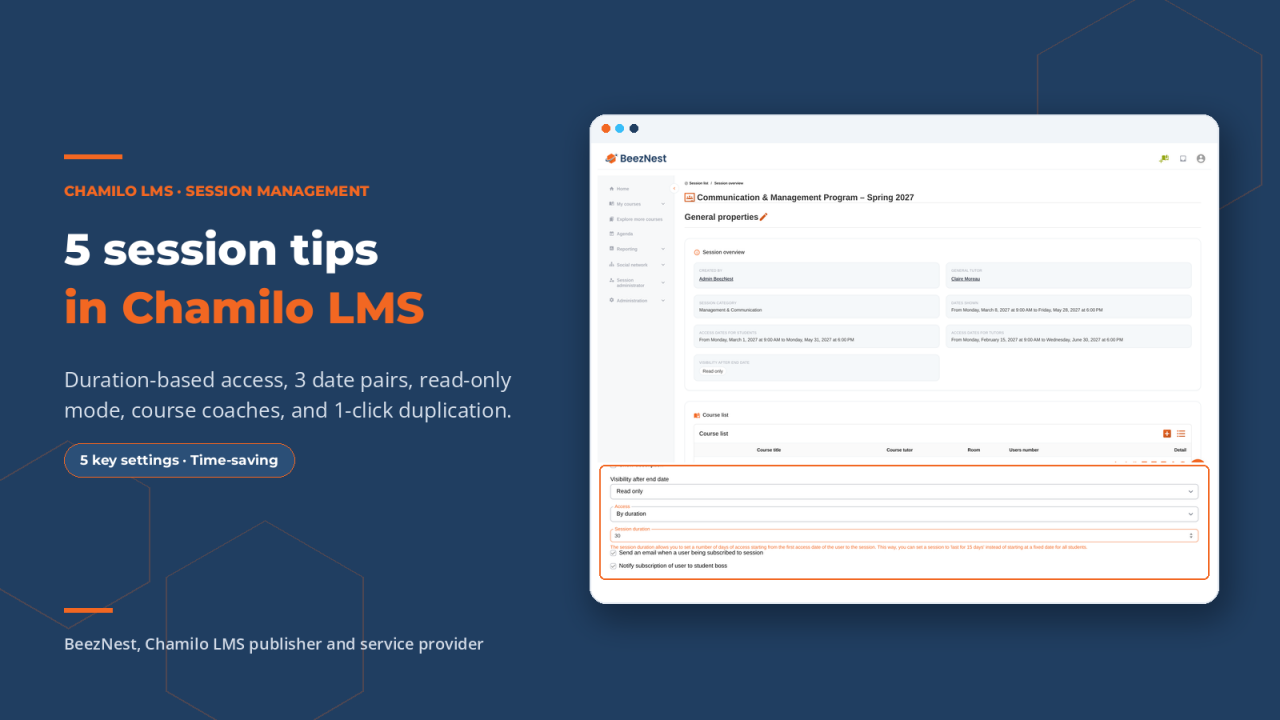
The “Access: By duration” setting (30 days) and enrolment notifications in Advanced settings.
What it changes in practice
The countdown is individual and only starts when the learner first enters the session. Two employees enrolled on the same day but starting two weeks apart each get their full 30 days.

Granting 15 additional access days to one learner without changing the session.
2. Separate the 3 pairs of dates: learners, display and coaches
In fixed-date mode, trainers want access before opening to prepare their groups, and after closing to mark the last assignments and export certificates. With a single pair of dates, the session opens too early for learners or stays open too long.
How to configure it in Chamilo
In Advanced settings, with Access: By dates, Chamilo offers three independent pairs of dates:
- Access start date and Access end date: the actual learner window (for example 01/03 to 31/05);
- Start date to display and End date to display: the official dates shown on the session page and in My sessions (for example 08/03 to 28/05);
- Access start date for tutors and Access end date for tutors: the trainers' window (for example 15/02 to 30/06).

The 3 independent pairs of dates: learner access, displayed dates and tutor access.
What it changes in practice
Your trainers get two weeks ahead to check materials and a month after the end to finish marking and exports, while learner access opens and closes automatically on schedule.
3. Choose the right “Visibility after end date”
What happens the day after the end date? If the session disappears, learners email you to retrieve a handout. If it stays open, some keep submitting work or retaking quizzes after grades are closed.
How to configure it in Chamilo
Just above the access mode, the Visibility after end date menu offers three behaviours:
- Read only (default): learners can view and download their materials but can no longer take tests, submit assignments or post in forums;
- Accessible: the session stays fully interactive (community of practice, permanent resource space);
- Not accessible: the session closes completely at the deadline (strict exam window, regulatory assessment).

The “Visibility after end date” menu and its three options.
What it changes in practice
With Read only, you cleanly freeze results at the end date for reviews and audits, while learners keep access to their revision materials.
4. Split roles on the “Session overview”
A session often groups several courses run by different trainers, for instance a three-module management programme. If every trainer has the same global role, everyone sees and receives everything.
How to configure it in Chamilo
From Administration > Sessions management > Session list, open the Session overview:
- one General coach at session level, coordinating the cohort;
- separate Coaches course by course, in the Course list table;
- targeted enrolments: an optional course can include only part of the session's learners.

The “Session overview”: the cohort's General coach and coaches assigned course by course.
What it changes in practice
You manage a whole cohort in a single session (one calendar, one overall report), while each trainer gets a clear scope on their own module.
5. Duplicate a session and automate enrolment notifications
When a programme comes back every quarter with the same structure and teaching team, rebuilding the session by hand wastes time and invites mistakes.
How to configure it in Chamilo
Two complementary settings:
- in the Session list, click the Copy icon (or tick several sessions and click Copy selected). The new session keeps settings, General coach, linked courses (without duplicating master courses) and coaches, with an empty learner list. At creation, you can also pick a Session template;
- at the bottom of Advanced settings, tick Send an email when a new user is registered to the session and Notify the registration of the user to the student boss.

The “Session list” with individual copy and the bulk “Copy selected” button.
What it changes in practice
In seconds, your autumn session is ready based on the spring one, master courses stay unique, and every enrolment automatically informs both the learner and their manager.
In summary: which setting for which need?
Rolling enrolment
Access: By duration, to onboard learners continuously as they arrive, with additional access days case by case.
Trainers before and after
Access: By dates with the 3 pairs of dates: learners, display and tutors.
After the end date
Visibility after end date: Read only, to keep materials without new submissions.
Multi-module cohort
General coach and per-course Coaches on the Session overview.
Recurring cohorts
Copy / Copy selected plus the two enrolment notification boxes.
Want to optimise how you manage sessions in Chamilo?
Our teams configure your platform, train your administrators and automate your enrolments.
Sources: Documentation Chamilo LMS.
The BeezNest editorial team
Chamilo LMS publisher and service provider · beeznest.com