

CHAMILO LMS · CUSTOMIZATION & THEMES
Three Halloween skins of the same Chamilo LMS portal versus the dreaded "abandoned course": proof that with the platform's native tools, a bit of common sense and a few lines of CSS, you can customize your courses and portal without a graphic designer or web designer.
BeezNest editorial team · October 2026 · 6 min read
Let's be honest from the very first line: adding pumpkins, gothic manors or misty forests to your LMS will not earn your teams a single learning point. No learner remembers their compliance or management module any better because the navigation bar is pumpkin orange.
So why did we have fun, in the run-up to October 31, dressing up the same Chamilo LMS portal in three radically different Halloween skins, each with its own stylesheet, its own dedicated forest background and its own course banner, before pitting them against a 4th contender that every trainer dreads?
To prove one very simple thing: you don't need to hire a graphic designer, a web designer or a front-end developer to bring your Chamilo LMS portal and courses to life. Most of these three atmospheres (colors, logo, introduction image, 4 or 5 visible tools) are set up in a few clicks with the simple tools the platform provides out of the box, a bit of teaching common sense and some basic knowledge of portal administration. For the finishing touch (the forest background and the style of the tool cards), a few lines of CSS added to the theme stylesheet were all it took.
And if a Chamilo LMS portal can switch in a few minutes from a Pumpkin & Midnight autumn forest to a Gothic Manor or a Cyber-Toxic Lab while remaining perfectly readable, imagine how easily you can adapt it to the visual identity of your company, your school, your institution or each of your subsidiaries.
Here are our 4 contenders for the title of spookiest Chamilo LMS course, followed by a practical mini-guide to customize your courses and your portal on your own.

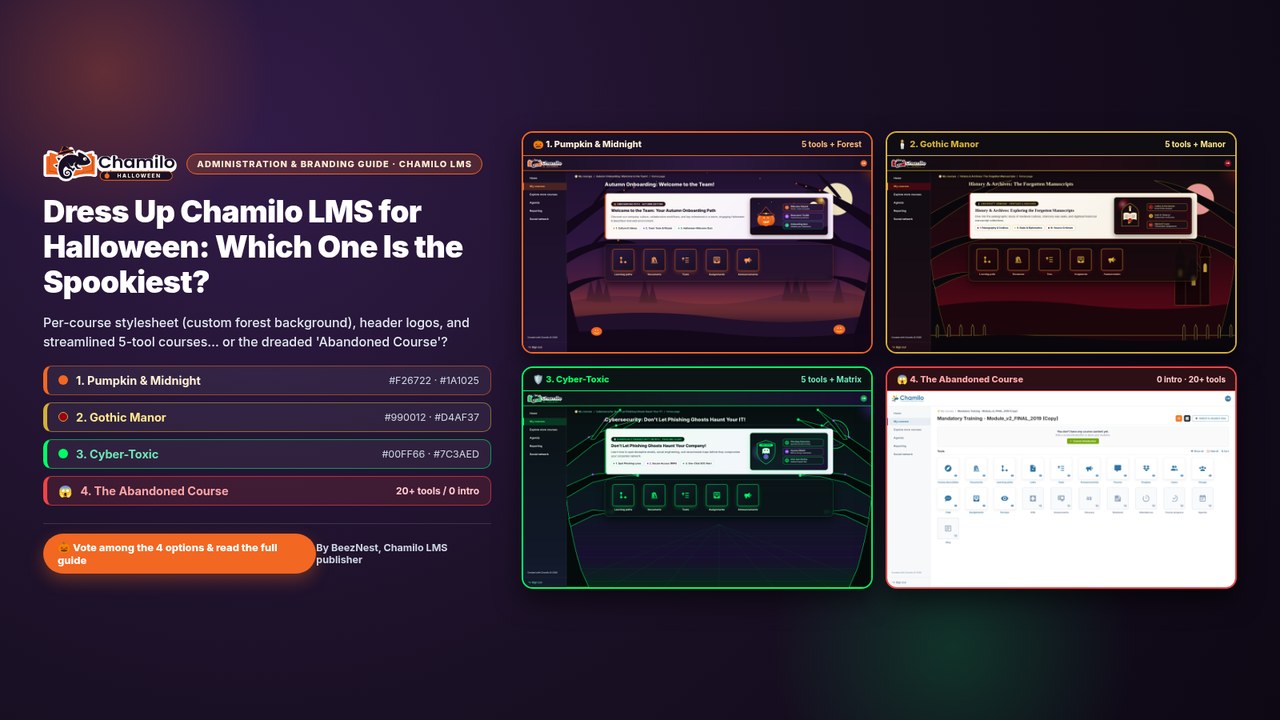
The 4 contenders: three Halloween skins with a dedicated forest background… and the abandoned course.
The October 31 showdown: which of these 4 Chamilo LMS courses is the spookiest?
For this test taken to the extreme, we used one and the same Chamilo LMS portal, with no design studio and no custom development, enabling the option to assign a dedicated stylesheet per course (with a tree background matching each atmosphere) and taking care of the introduction area:
1. "Pumpkin & Midnight", the autumn forest at dusk
Against a background of autumn trees under a full orange moon, the midnight violet (#1A1025) and bright orange #F26722 palette, an unashamed nod to BeezNest's historic color, dresses up the course "Autumn Onboarding: Welcome to the Team!". The 5 tool cards and the introduction banner immediately immerse newcomers in the atmosphere without ever sacrificing reading contrast.

Option 1, Pumpkin & Midnight: autumn forest, introduction banner and 5 visible tools.
2. "Gothic Manor", the university library spirit (Dark Academia)
Under a gothic forest of gnarled trees, wrought-iron gates and manor silhouettes, the combination of carmine red (#990012), obsidian black (#0F0D12) and parchment gold (#D4AF37) dresses up the course "History & Archives: The Forgotten Manuscripts". Even with a theme full of personality and gold-trimmed tool cards, learners never lose their bearings.

Option 2, Gothic Manor: gothic forest, wrought iron and gold-trimmed tool cards.
3. "Cyber-Toxic Lab", the circuit-tree forest of Cybersecurity Month
As a direct nod to European Cybersecurity Month, which wraps up at the end of October, the course "Cybersecurity: Don't Let Phishing Ghosts Haunt Your IT!" features a background of neon circuit trees in acid green (#00FF66) and cyber violet (#7C3AED) on carbon black (#0B1315): ideal for making an impression during an internal anti-phishing campaign.

Option 3, Cyber-Toxic Lab: neon circuit trees for European Cybersecurity Month.
4. "The Abandoned Course", the real learning nightmare!
Ask trainers and learners what really sends shivers down their spine when they open an LMS, and it's neither pumpkins nor manors: it's an abandoned course ("Mandatory Training - Module_v2_FINAL_2019 (Copy)"), with no image or introduction text at all, displaying more than 20 tools in a jumble on its home page! And that's exactly where a few minutes of common sense make all the difference.

Option 4, The Abandoned Course: no introduction and 21 tools in a jumble.
How to customize Chamilo LMS yourself, with common sense and the platform's native tools
No graphic design skills needed, and no need to touch the source code: the difference between "the abandoned course" and our three atmospheres comes down to two levers available to any Chamilo LMS trainer and administrator.
1. At course level (in 2 minutes, by the trainer): 4 or 5 visible tools, an introduction image and a dedicated stylesheet
Any teacher or trainer can transform their course home page in four simple steps:
- Keep only 4 or 5 tools visible on the course home page: in the
Toolssection, first clickHide all, then switch on the eye icon only for the 4 or 5 tools actually used in your learning scenario (here:Learning paths,Documents,Tests,AssignmentsandAnnouncements). - Place a representative image in the introduction area: click
Course introduction/Add introduction(or the pencil iconEdit introduction) at the top of the page to insert a visual that represents the course content, schematically, abstractly or concretely, along with a short welcome message. - Choose a dedicated stylesheet for the course (if desired): when the
Allow course themessetting is enabled on the portal, the trainer can open theCourse settingsand selectStyle sheetsspecific to their course, and even extend it to modules viaEnable course themes in learning paths. That's what allows each of our three Halloween courses to display its own forest background and its own card colors! - Check the result in one click: press
Switch to student viewat the top right to immediately check the decluttered screen exactly as your enrolled learners will see it (all hidden tools disappear completely).
Limiting a course home page to 4 or 5 visible tools and illustrating the introduction area requires no technical skills, but instantly turns your module from "the abandoned course" into a welcoming, readable space.
2. At portal level (in a few clicks, by the administrator): colors, stylesheets, logo and multi-URL
With some simple knowledge of Chamilo LMS administration, you can just as easily adapt the overall look of the portal or prepare ready-to-use themes for your trainers:
- Adjust the colors and save a theme: from
Administration > System > Colors(theConfigure Chamilo colorsscreen, or viaAdministration > Configuration settings > Style sheetsdepending on your portal generation), adjust thePrimary color, theSecondary colorand theTertiary colorwith the live preview, clickSave as new themeand thenSelect as current theme. - Allow a theme and a background per course: in
Administration > Configuration settings > Course, theAllow course themessetting (enabled by default) lets each course adopt its own CSS stylesheet (including, if you wish, a dedicated background image such as our tree silhouettes). - Go further with a few lines of CSS: the background image and the tool card style of our three atmospheres are added by extending the theme's
colors.cssfile (invar/themes/<theme-name>/). A quick tip: re-saving the theme from theColorsscreen regenerates this file, so keep a copy of your additions. - Change the header logo: on the colors screen, click
Go to branding (logos)(Branding (logos)section), upload yourHeader logo(SVG or PNG) and clickSave header logo. - Liven up the home page and roll it out across multi-URL: publish a themed welcome card via
Administration > Platform management > Pages(homecategory) orPortal news. And if your platform usesMulti URLs, each subsidiary, school or entity can get its own active theme and its own logo with these same native tools.

The "Configure Chamilo colors" screen: theme colors, live preview and access to branding.
6 key moments of the year to bring your Chamilo LMS portal to life
Since these settings only take a few minutes and don't require a web designer, you can refresh the home page of your portal or of your flagship courses throughout your organization's key moments:
| Key moment of the year | Simple skin idea (portal or course) | Related learning use |
|---|---|---|
| October, European Cybersecurity Month & Halloween | Dark "cyber" stylesheet and a security-challenge introduction visual | Relaunch the annual phishing and ransomware awareness module |
| October / November, Pink October, Movember, Disability Employment Week | Banner in the campaign colors and a dedicated welcome box | Showcase health, prevention, diversity and inclusion (disability) learning paths |
| December, Year-end & retrospective | Warm winter background and a year-end quiz challenge | Highlight the skills acquired over the year before the holidays |
| January & September, Back to school and onboarding campaigns | "Welcome" message and visual, onboarding course reduced to 4 or 5 key tools | Support the onboarding of new employees or new student cohorts |
| Spring, Workplace Well-being Week or CSR week | Nature stylesheet (trees/landscape background) and an introduction image on prevention or eco-friendly habits | Rally people around workplace well-being, safety or CSR training |
| All year round, Product launch or new subsidiary (multi-URL) | Logo and theme adapted to the new entity's colors | Instantly align the internal or partner academy with the new identity |
Want to go further (or delegate)?
Chamilo LMS's philosophy is to put you in control, so you can customize your courses and your portal simply and on your own.
And if you'd rather entrust the initial setup, hosting or a more advanced visual identity to our teams, BeezNest, as the Chamilo LMS publisher, supports you at two levels:
- Chamilo PRO: our sovereign LMS hosting offer (France and Belgium) with managed services and level-3 support includes standard visual customization of your portal in your organization's colors.
- A custom e-learning portal: when your project requires specific visual integration or dedicated development, our teams design your portal from A to Z.
So, between 1. Pumpkin & Midnight, 2. Gothic Manor, 3. Cyber-Toxic Lab and 4. The Abandoned Course (with 21 tools in a jumble)… which one looks the spookiest to you?
The BeezNest editorial team
Chamilo LMS publisher and service provider · beeznest.com